

Getting started with the plugin
In this chapter you will install WP Smart Contracts, activate its launcher, connect your wallet, sign in securely and open the deployment dashboard, so you are ready for the following chapters.
1 Install the plugin
In your WordPress admin go to Plugins → Add New, search for “WP Smart Contracts”, then install and activate it. You can also download it from WordPress.org.
You need a self-hosted WordPress site and the MetaMask extension installed in your browser.
2 Activate the launcher
Open Smart Contracts Dashboard → Admin Setup Wizard and, in the Launcher step, check the box to activate the Launcher pages, the Affiliate Program and the Smart Contracts Wizard. The plugin creates the “Launcher…” and “Wizard…” pages on your site.
In the same step you can upload your own logo for the launcher and enter the wallets where you want to receive affiliate commissions.
3 Open the launcher
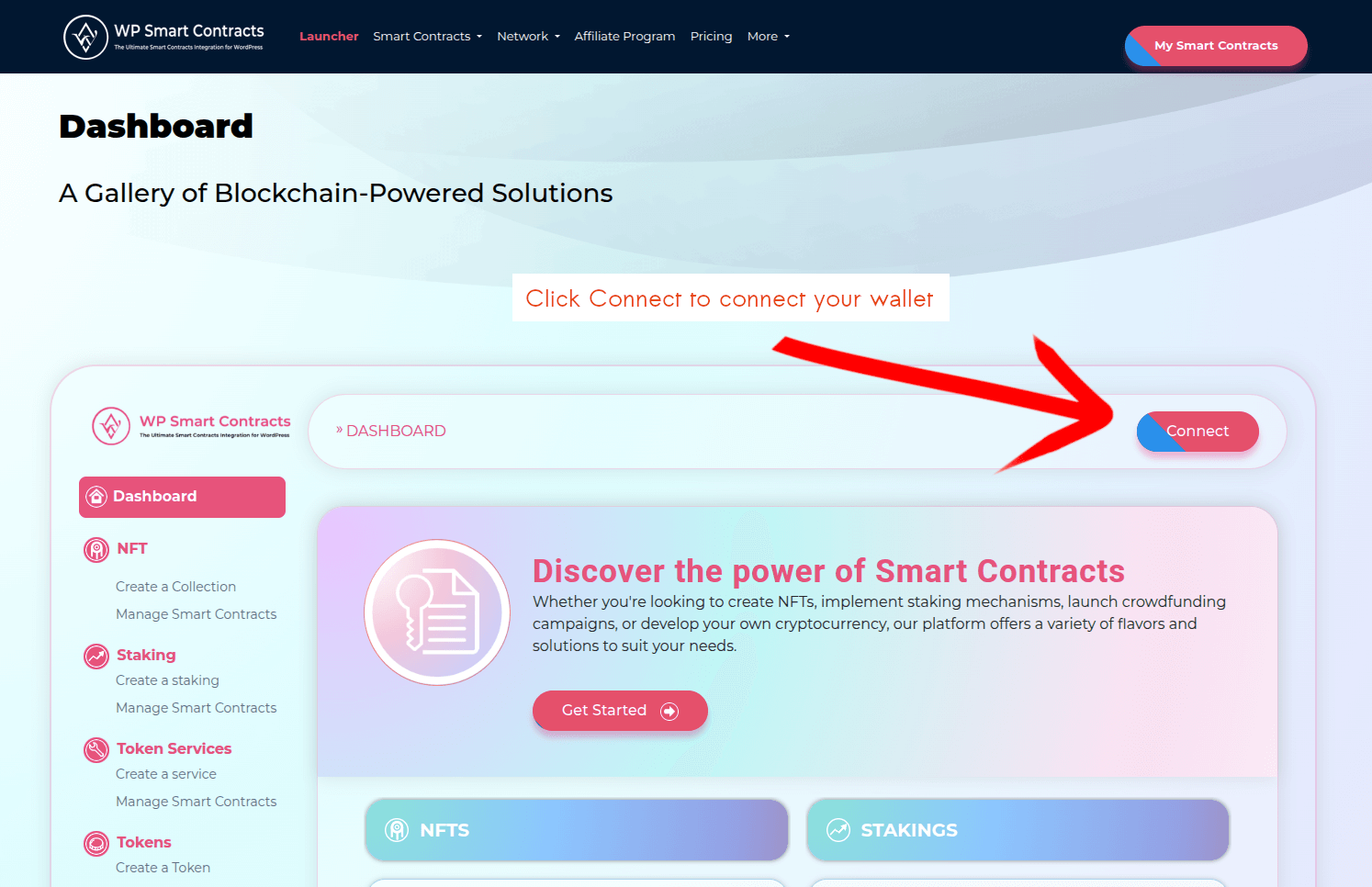
Visit the Launcher page on your site (add it to your menu so visitors can find it) and click the connect button.
4 Connect your wallet
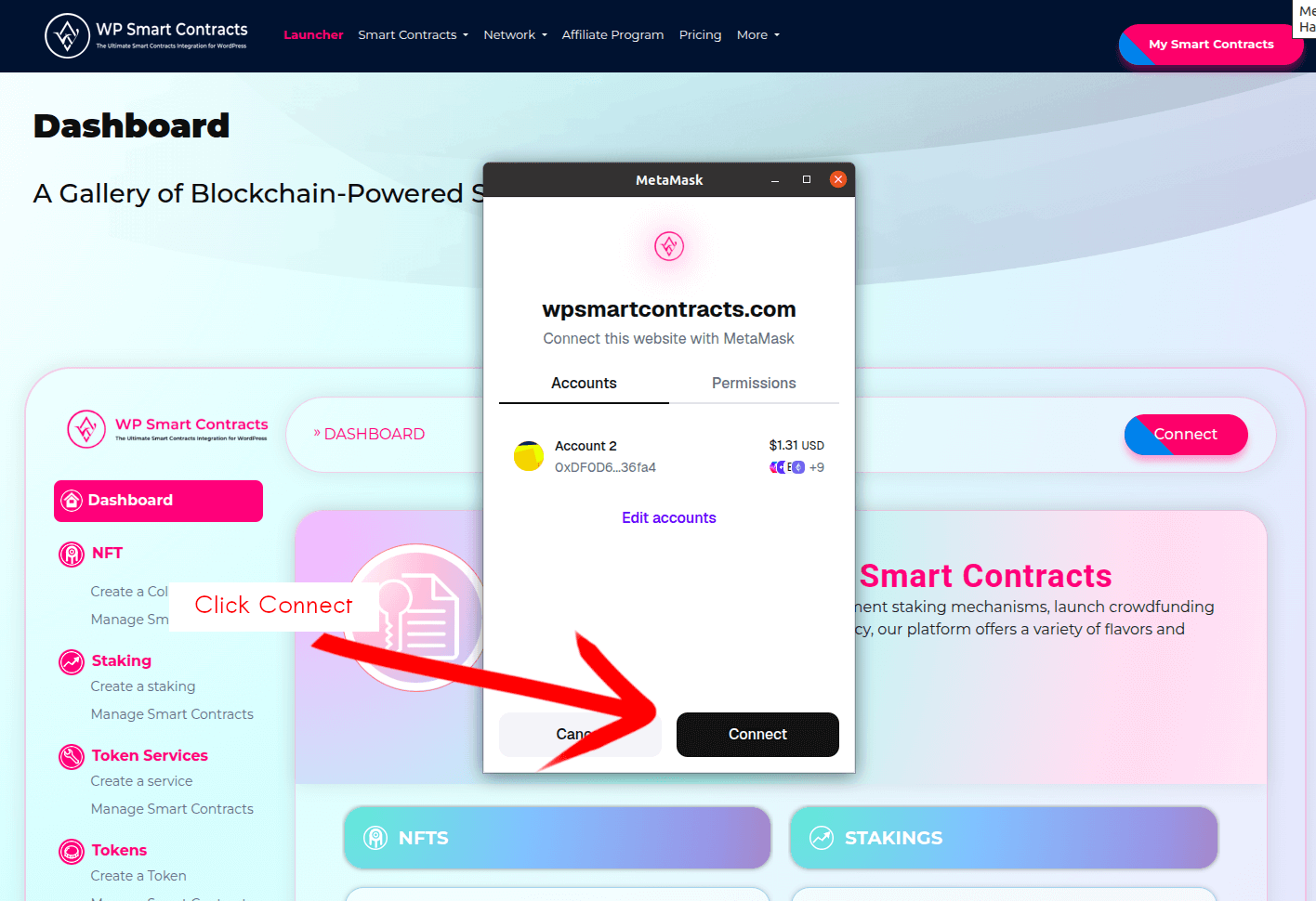
Connect your MetaMask wallet to the website.
Click the "Connect Wallet" button and select MetaMask from the available options. Make sure your MetaMask extension is installed and unlocked before proceeding.
5 Sign in
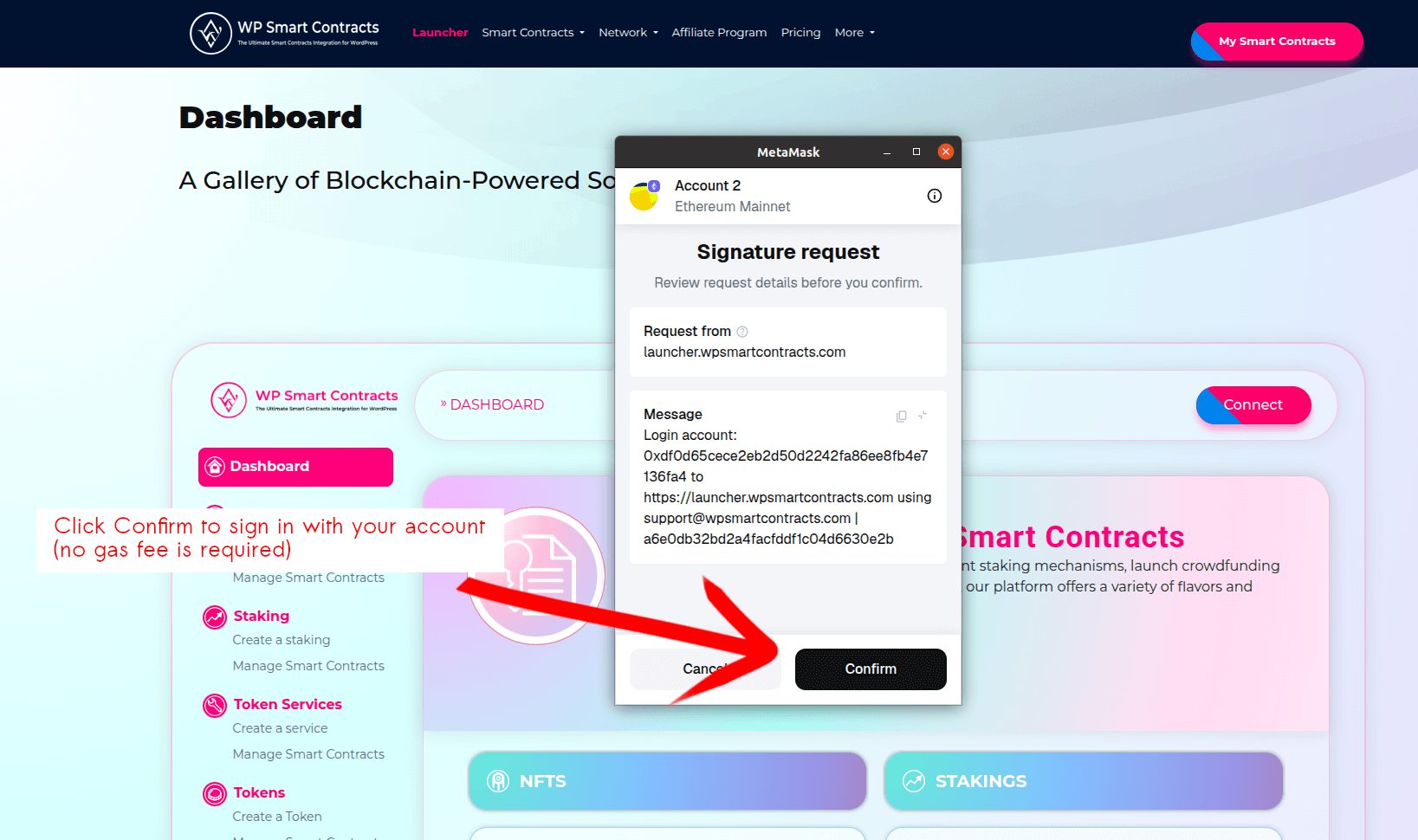
In order to login your user into the site, sign the message using your MetaMask wallet. This is a gas-less signature.
MetaMask will prompt you to sign a message to authenticate your identity. This signature doesn't cost any gas fees and is used solely for login verification.
6 Get started
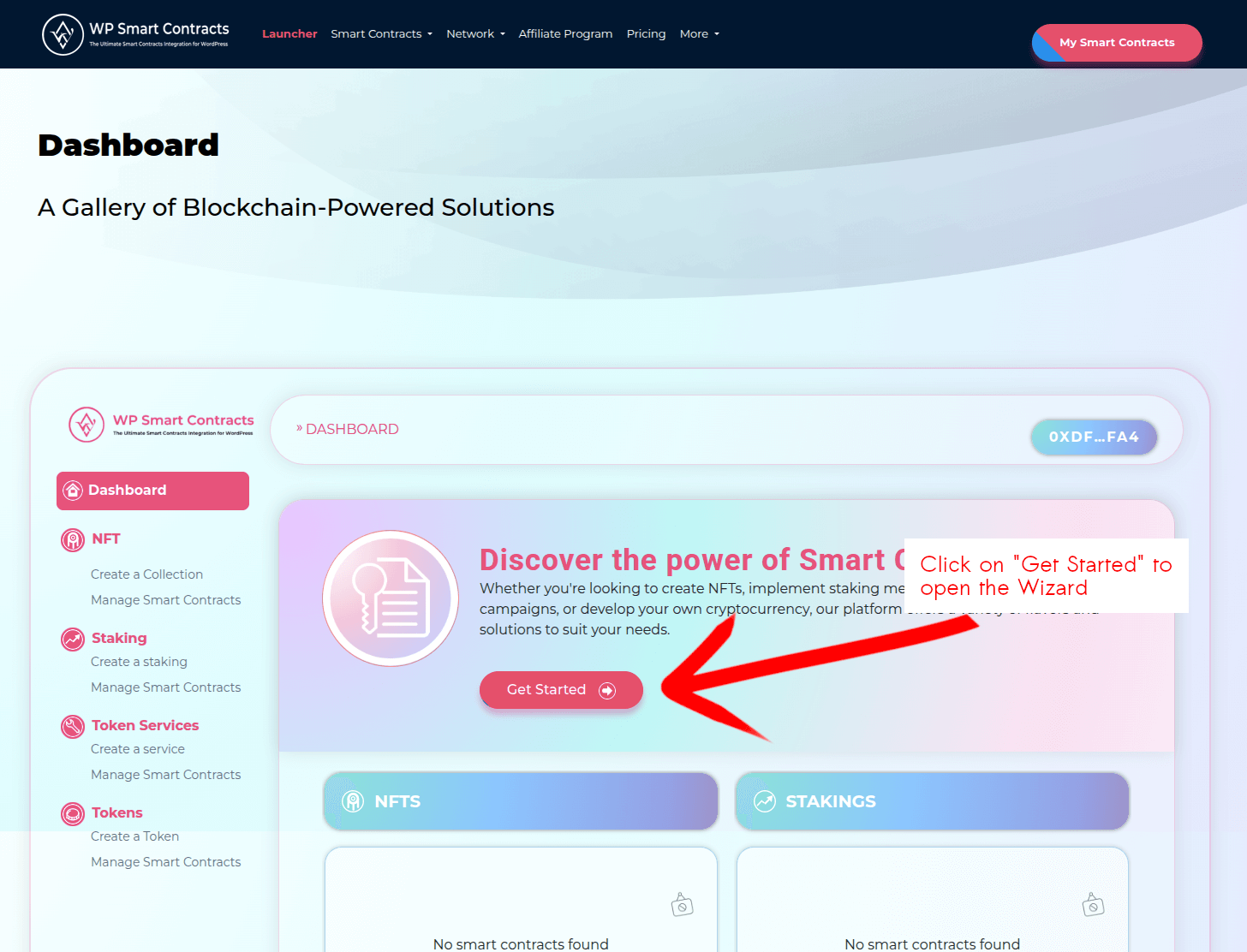
Once connected, you can click "Get Started" to begin the process of deploying your smart contract.
After successful authentication, you'll see the main dashboard. Click the "Get Started" button to enter the smart contract deployment wizard.
7 Continue: token creation
Great! You have connected, authenticated, and reached the launcher dashboard. Next, go to Chapter 2 to select your contract type and configure your token.
Go to Chapter 2: Token creationEnd-to-End Smart Contract Development
Need something the flavors don’t cover? Suika Labs, the company behind WP Smart Contracts, delivers professional blockchain solutions with a proven track record since 2019.
- Full-stack blockchain development
- Oracle integrations & DeFi protocols
- UI design & deployment support